Beats
- 3.9
- Rating
- 10.00M
- Installs
- Free
- Price

 Analysis by App-foxy
If you own compatible Beats headphones or earbuds, Apple’s Beats app is designed to make the first few minutes less confusing and the everyday controls easier to reach. I found it most useful as a companion rather than as a music player: it helps you work with your Beats hardware, check its state, and make better use of the controls already built into the device. That distinction matters, because someone looking for a general audio equalizer or a replacement for a full music app may expect more than it is meant to provide.
The app is free, aimed at everyone, and comes from Apple. It sits in the tools category, where its job is practical rather than entertaining. The store summary says “Enhance your Beats,” but my experience is that its real value appears when you are trying to understand how your particular headphones behave. Instead of hunting through unrelated phone menus, you get a dedicated place for the accessory and its available controls.
What to expect before you begin
Beats is not a universal control panel for every brand of wireless audio product. Its usefulness depends heavily on owning supported Beats hardware. If you only use wired earphones, switch between several manufacturers, or want one app that manages all your Bluetooth accessories, this is probably not the right download. Its focused design is both its strength and its main limitation.
You May Also Like

 Blood Strike: 2.5 Anniversary
Blood Strike’s Loadouts Turn Every Drop Into a Tactical Gamble
A close look at Blood Strike’s custom loadouts: how fast access to signature weapons reshapes its battle royale rhythm, rewards preparation, and narrows the gap between fights.

 Pandora - Music & Podcasts
Pandora’s Music Is Easy to Start, but Harder to Recover
Pandora’s strength is its low-effort path from a seed to a station. Its weak spot is how much confidence it asks you to place in connection, setup, and quiet recovery.

 8 Ball Pool
 Is Built on Rivalries, Rematches, and Routine
A close look at the rivalries, rematches, shared routines, and unanswered safety questions that turn a quick pool match into a persistent mobile community.

 Samsung Music
’s Quiet Strength Is Playing What You Already Own
Its reach comes less from spectacle than from dependable access to a personal library. That simplicity is both the app’s strongest retention engine and its ceiling.

 AccuWeather: Weather Radar
AccuWeather Review: A Quick, Clear Forecast for Everyday Decisions
For everyday plans, the best forecast is the one you can understand quickly. AccuWeather makes rain timing, radar, and local conditions easy to act on, with a few trade-offs.

 Hill Climb Racing
Why Hill Climb Racing Still Turns Crashes Into One More Run
A tiny car, a bumpy hill and one more upgrade: Hill Climb Racing keeps resurfacing because its simple chaos makes every near-miss feel personal.
More From Our News Desk



The app has been available since October 29, 2015, and the current release is version 2.11. That long presence helps explain why it feels like a mature companion utility rather than a new experiment. It has passed ten million installs and carries a 3.8 average from roughly twenty-four thousand ratings, with about five thousand seven hundred written reviews. Those figures suggest a broad user base, but also a mixed experience: the app can be very convenient when the phone and headphones cooperate, while connection or compatibility issues can quickly become frustrating.
I would approach it with one simple expectation: install it to make your Beats easier to use, not to transform their sound completely. The app cannot turn an entry-level pair into a different model, and it should not be judged as though it were a full studio tool. Its best moments are small but useful: finding the right device controls, confirming that the headphones are connected, and learning what the buttons or gestures do without repeatedly checking a manual.
Before opening it, charge the headphones and keep them close to the phone. Turn Bluetooth on, and if the headphones have already been paired, make sure they are not actively connected to another nearby device. This is a simple step, but it prevents a common first impression that the app is broken when the real problem is that the accessory is talking to a tablet, laptop, or another phone.
The first setup is easier when you remove distractions
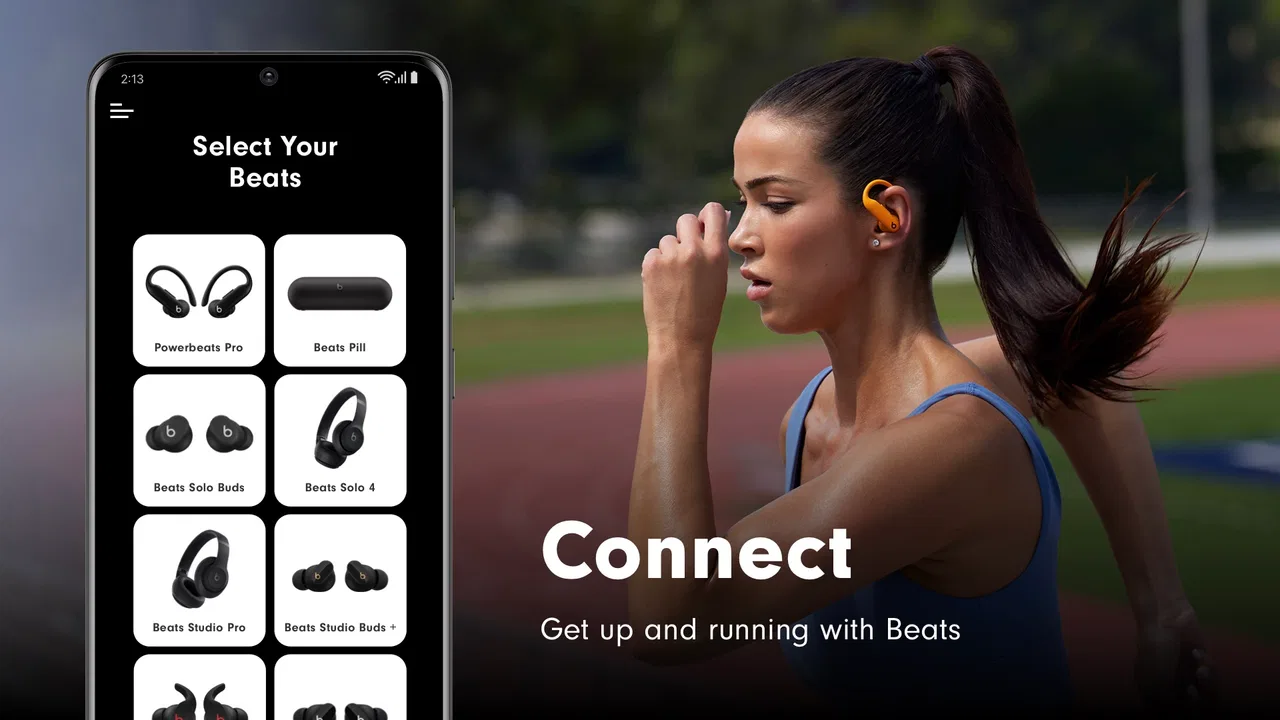
After installing the app, open it with the Beats device nearby. If the headphones are folded away, switched off, or still inside a case that prevents a connection, wake them first. I recommend doing the initial setup in a quiet room rather than while walking outside. You want to notice whether the phone recognizes the accessory and whether the app displays the expected device, not troubleshoot a crowded Bluetooth environment at the same time.
When the device appears, take a moment to identify it correctly. This is especially important if several Beats products are used in the same household. Connecting to the wrong pair can lead to unnecessary changes and makes later testing confusing. A useful habit is to keep only the pair you want to configure powered on during the first run.
The setup experience is not complicated, but it is not completely automatic in every situation. A previously paired device may connect quickly, while a new or recently reset pair may require you to complete the normal Bluetooth pairing process first. If the app cannot see the headphones, I would leave the app, check the phone’s Bluetooth screen, and confirm that the Beats are listed as connected before trying again. Reinstalling immediately is usually a poor first response.
Another practical tip is to avoid changing several settings at once. First establish that the headphones play sound normally. Then test one control, such as the button action or another available device option, and check the result. This gives you a clear baseline. If something feels wrong later, you will know which change caused it instead of having to undo a series of guesses.
Because this is an Apple-developed app running on Android, the experience can feel different from Apple’s own device ecosystem. On a compatible Android phone, the app gives you a dedicated route to Beats functions, but it should not be mistaken for the deeper system integration available in every Apple hardware combination. That does not make it useless on Android; it simply means expectations should stay realistic.
Your first meaningful success should take less than a minute
The first success I look for is not a dramatic sound change. It is confirming that the app recognizes the correct headphones and that the main controls respond. Put the headphones on, start a familiar song or podcast from your usual audio app, and use the Beats app to inspect the connected device. Then test one physical control on the headphones and confirm that the phone reacts as expected.
This small check answers several important questions at once. You learn whether the connection is active, whether you selected the right accessory, and whether the controls are behaving normally. If the app presents device information or available options, read through them before changing anything. New users often rush toward customization and miss the more valuable step of understanding what their model actually supports.
A realistic everyday example is a commute. You leave home wearing your Beats, but the phone has connected to a speaker in the kitchen instead. Opening the companion app gives you a focused place to check the headphones rather than scrolling through a long list of Bluetooth devices. Once the correct pair is active, you can return to your podcast app and keep moving. That is the kind of modest time-saving workflow where this utility earns its place.
It is also useful before a call. I would connect the headphones a few minutes beforehand, play a short piece of audio, and test the controls instead of waiting until the call begins. If the connection is unreliable, discovering that early is much less stressful than trying to solve it while someone is waiting. The app does not remove every Bluetooth problem, but it makes the accessory easier to identify and check.
For a family member who is not comfortable with phone settings, the dedicated layout can be reassuring. Rather than explaining a chain of Bluetooth menus, you can show them where their Beats appear and how to confirm the connection. The most valuable first action is verification, not customization. Once the basic connection works, the rest of the app becomes easier to understand.
Where new users commonly get confused
The biggest source of confusion is assuming that an app named Beats controls every aspect of listening. It does not replace the music service, podcast player, or call app you normally use. You still begin playback in those apps. Beats acts as the hardware companion, so its screen may feel quiet when you are expecting a library, playlist, or large sound-control dashboard.
Another misunderstanding involves sound quality. If you install it hoping for a complete equalizer with detailed frequency sliders, you may be disappointed. The app’s purpose is tied to the Beats product and its supported controls, not to offering a universal mixing console. For serious audio shaping, the equalizer or sound settings in your phone or music service may be a better fit, although those options affect listening more broadly and may not provide the same hardware awareness.
Connection status can also be misleading when multiple devices are nearby. A pair of headphones may remember a computer or tablet, and the phone may show the accessory without the app being able to use it immediately. In that situation, disconnecting the headphones from the other device, turning them off and on, and reopening the app is a sensible sequence. I would avoid repeatedly tapping the same button; Bluetooth problems rarely improve through impatience.
Users sometimes expect every Beats model to expose identical controls. That is not a safe assumption. The available experience can depend on the headphones you own, so a feature shown in a guide for one product may not appear for another. Treat the screen for your connected device as the useful reference. If an option is not presented there, searching through unrelated menus is unlikely to create it.
There is also a difference between controlling headphones and repairing them. The app can help you work with a connected accessory, but it is not a substitute for charging, cleaning, checking physical damage, or resolving a defective battery. If audio cuts out because the earbuds are dirty or the case is not charging correctly, software alone will not solve the underlying issue. This is an important boundary, especially for first-time users who assume a companion app can diagnose every hardware fault.
Small workflows that make the app more worthwhile
One useful workflow is to make a quick pre-departure check part of your routine. Before leaving for work or school, connect the headphones, confirm the correct device, and test the control you use most often. This takes less effort than discovering on a bus that the wrong pair is connected or that a button action has changed. It is particularly helpful if you alternate between a phone and a computer throughout the day.
A second workflow is to use the app when lending the headphones to someone else. Show the other person the device screen and the basic control behavior before they leave. That avoids the common situation where a friend can hear audio but cannot work out how to pause it, answer a call, or return control to the phone. The companion app is not a full tutorial, but it gives you a concrete starting point for that handoff.
A third insight is to treat troubleshooting as a controlled process. Keep the headphones close, disconnect other Bluetooth audio devices, confirm the phone’s connection, and then reopen the app. Change one thing at a time. This approach is more reliable than resetting everything immediately, because a full reset can remove a working pairing and create another task without identifying the original cause.
I also recommend checking the app after a phone or headphone update rather than assuming the old behavior remains unchanged. If a control suddenly behaves differently, first verify that the same Beats device is connected and that the app recognizes it. Then test the action with a simple audio source. This separates an app issue from a problem in the music service, phone settings, or physical controls.
For people who use several audio brands, the trade-off is clear. A general Bluetooth manager may be more convenient for switching between products, while Beats is more focused when your main headphones come from Apple’s audio family. A manufacturer-neutral equalizer may offer more sound adjustment, but it will not necessarily understand the device-specific controls as clearly. I would choose Beats for focused hardware management, not for broad accessory coverage.
Who should use it, and who should skip it
I would recommend the app to a first-time Beats owner who wants a straightforward companion on Android. It is also a sensible choice for someone who often forgets which Bluetooth device is connected, shares headphones with family, or wants a dedicated place to check the accessory before calls and travel. The free price removes the usual barrier to trying it, and the everyone age rating makes it suitable for general household use.
It is less compelling for an experienced user whose headphones already connect reliably and whose phone provides all the controls they need. If you never adjust or inspect the device after pairing, the app may spend most of its time unused. Likewise, owners of non-Beats headphones should look for the companion app made for their own hardware instead of expecting this one to manage it.
I would also steer away from it if your main goal is advanced audio production. The app is not the right tool for detailed mixing, speaker calibration, or managing a collection of unrelated wireless devices. In those cases, an audio-focused application or the controls built into your preferred music service may offer a better match. The important question is not whether Beats is feature-rich in isolation, but whether its focused purpose matches your problem.
The rating of 3.8 from around twenty-four thousand ratings reflects that distinction well. It is easy to understand why some people appreciate a dedicated accessory screen, while others expect a more powerful control suite or run into connection friction. I would not read the average as a verdict on the headphones themselves. It says more about how smoothly the app fits different phones, devices, and expectations.
What to do after the first successful setup
Once the connection works, resist the urge to keep opening the app without a reason. The best next step is to learn the one or two controls that matter in your routine. For me, that means knowing how to pause audio, resume it, and confirm which device is active before a call. A small amount of familiarity is more useful than spending time exploring settings that you may never touch.
Keep the app available when troubleshooting, but do not make it the only place you look. If sound is missing, check the phone’s output selection. If the headphones will not connect, check whether another device has claimed them. If one side is silent, inspect the earbuds and charging case. This layered approach prevents you from blaming the app for a phone or hardware issue.
It is worth remembering that a companion utility should reduce friction, not become another maintenance chore. If the app consistently helps you identify the right headphones and reach their controls, keep it. If your setup is already effortless and the app adds no practical value, you can rely on your normal Bluetooth tools instead. The decision is personal, and there is no benefit in keeping a utility open simply because it came from the manufacturer.
My final view is positive but measured. Beats is best understood as a focused bridge between an Android phone and compatible Beats hardware, not as a complete audio platform. It gives first-time users a calmer path from pairing to everyday use, and its dedicated approach is more approachable than digging through generic Bluetooth menus. At the same time, it cannot overcome incompatible hardware, poor charging habits, every connection problem, or the limited needs of someone seeking advanced sound control.
If you already own Beats headphones and want a free, practical companion, I think it is worth trying. Start with the simple goal of getting the correct device recognized, test one control, and then use it only where it saves time. That path gives you a meaningful result quickly and makes it clear whether the app belongs in your regular toolkit.
FAQs for Beats
01What platforms is Beats available on?
Beats is available for both Android and iOS platforms. You can download it from the Google Play Store for Android devices or the Apple App Store for iOS devices. Make sure your device meets the minimum system requirements to ensure optimal performance.
02Does Beats require an internet connection to function?
Beats offers offline functionality for some of its features, allowing you to enjoy music without an internet connection. However, for streaming new tracks or accessing certain online services, an active internet connection is required. Check specific features to see if they support offline use.
03What are the key features of Beats?
Beats offers a range of features, including customizable playlists, a vast music library, high-quality audio streaming, and personalized recommendations. It also provides social sharing options and integration with other apps. Users can enjoy an intuitive interface designed for seamless navigation.
04Is there a free version of Beats available?
Beats offers both free and premium versions. The free version includes basic features with ads, while the premium version provides an ad-free experience, offline downloads, and enhanced audio quality. Users can choose between monthly or annual subscriptions for the premium service.
05How does Beats handle user privacy and data security?
Beats prioritizes user privacy and data security by implementing robust encryption methods and adhering to strict privacy policies. Users have control over their data, with options to manage privacy settings within the app. It's important to review these settings to ensure your personal information is protected.
Pros
- Intuitive interface enhances user experience.
- Extensive library of curated playlists.
- High-quality audio streaming available.
- Offline listening without interruptions.
- Seamless integration with smart devices.
Cons
- Limited customization of playlist themes.
- Requires a subscription for premium features.
- Occasional app crashes on older devices.
- Heavy data usage without Wi-Fi.
- Some tracks unavailable in certain regions.

Beats
Gallery